Most businesses move their files to SharePoint expecting order, and a year later they have the same mess they had on the old file share.
Folders nest ten levels deep, three copies of the same contract float around, and nobody is sure who can open the HR library.
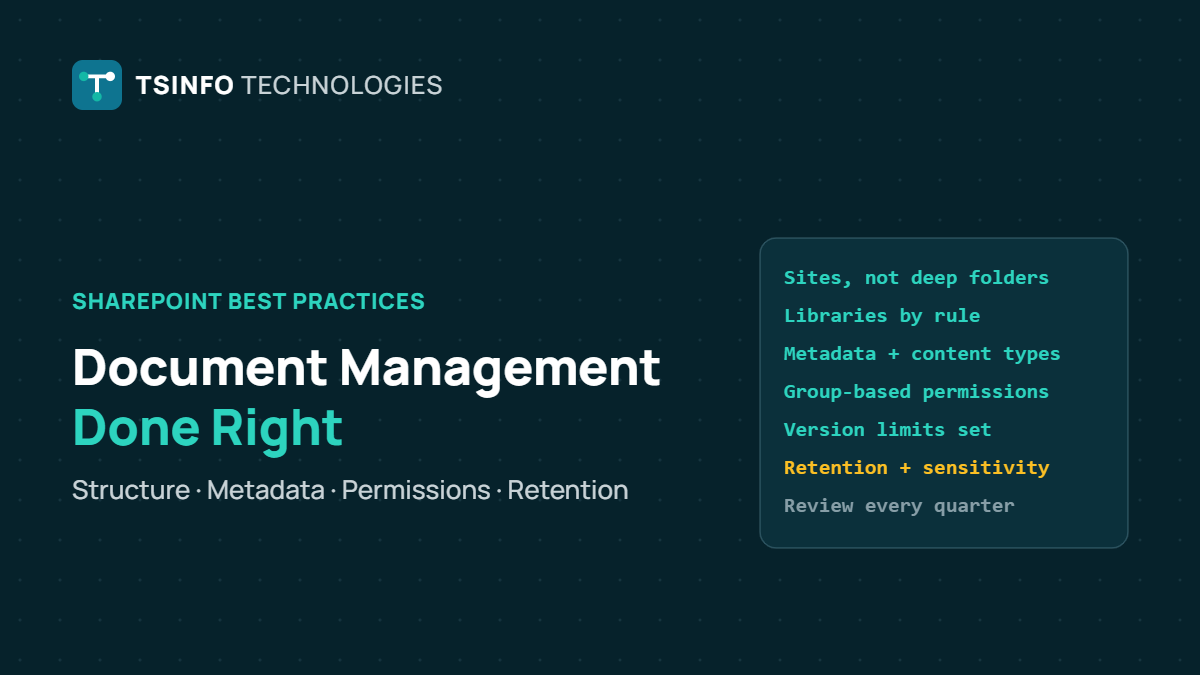
Quick answer: the core sharepoint document management best practices are to plan before you build, organize by sites and libraries instead of deep folders, tag files with metadata, manage access through groups, set version history limits on purpose and protect content with Microsoft Purview retention and sensitivity labels.
The ten practices below show how to do each one.
What Good Document Management in SharePoint Looks Like
Good document management means people find the current version of a file in seconds, only the right people can open it, and it is kept or deleted on schedule.
SharePoint Online has the building blocks; the hard part is using them consistently.
If you are still weighing the platform itself, our guide on whether SharePoint works as a content management system covers what it does well and where it needs help.
1. Plan Before You Build
Start with people and documents, not sites. Bring together a business sponsor, IT, compliance or legal, and a few department leads who know how work actually flows.
Ask each group which documents they create, who reviews and approves them, who reads the final version and how long they must be kept.
Turn that inventory into a one-page plan per department: document types, metadata, where drafts and finals live, access and retention. Our SharePoint consulting team runs these discovery sessions before building anything.
2. Organize by Sites, Not Deep Folders
In SharePoint Online, the site is the main container and the main security boundary. Give each department, major function or long project its own site instead of one giant site with a folder for everyone.
Smaller sites keep permissions simple and libraries fast.
Connect related sites with hub sites rather than subsites, as Microsoft recommends. Hubs give shared navigation without a rigid tree, and the same approach is the backbone of a well-planned SharePoint intranet.
3. Use Separate Libraries When the Rules Differ
The default Documents library is a starting point, not a rule. Create another library when a set of files needs different permissions, different metadata, a different retention label or a separate sync.
For example, a Finance site might keep general team files in one library and audit records in a locked-down second library.
Keep the number of libraries reasonable, and keep folders inside them shallow, two or three levels at most.
If you want ideas for real layouts, browse our SharePoint document library examples for HR, contracts, projects and policies.
4. Use Metadata and Content Types for Consistency
Metadata columns describe a file with values such as Department, Client, Document Type or Status.
For the bigger picture, our guide to using SharePoint as a document management system lists what it does well and where it falls short.
Unlike a folder, a file can carry many values at once, so you can build views like “all signed contracts for the Chicago office” without moving anything.
Content types bundle those columns, and optionally a template, into a reusable definition such as Contract or Policy.
Admins create them in the Content type gallery of the SharePoint admin center and select Publish so every site can use the same definition; changes go out with Republish.
| Use folders when… | Use metadata when… |
|---|---|
| A group of files shares the same permissions | Files need to be sorted or filtered several ways |
| People sync the library and browse it in File Explorer | You want views, search refiners or automation by value |
| The structure is simple and stable | The same file belongs to a client, a year and a status |
Keep it light: three to five required columns per content type is plenty for most teams.
5. Keep Permissions Simple and Group-Based
A team site is part of a Microsoft 365 group by default, and Microsoft recommends managing its access through that group, or through Teams when the site is connected to a team.
Communication sites use the standard Owners, Members and Visitors groups. Add groups, not individual people, wherever you can.
Avoid breaking permission inheritance on folders and files.
SharePoint supports up to 50,000 unique permissions per list or library, but the recommended limit is 5,000, and once a library or folder holds more than 100,000 items you cannot break or restore inheritance on it.
If a set of files needs different access, put it in a separate library or site.
For sharing, Specific people links are the safest default. Store confidential content in a site with external sharing turned off. Clear ownership helps too; see what a SharePoint site owner is responsible for.
6. Set Version History Limits on Purpose
Version history lets people see and restore earlier copies of a file, and coauthoring depends on it. Microsoft sets the organization default to Manual, with a limit of 500 major versions and no expiration.
Admins can change it in the SharePoint admin center under Settings > Version history limits.
Microsoft recommends the Automatically option for optimized storage. With Manual, you set a count between 100 and 50,000 major versions and an optional expiration of at least 30 days.
Site owners can override the default for a site or a single library.
Two details catch admins out. Organization changes apply only to new libraries, and versions trimmed by a limit skip the recycle bin.
Content under a retention policy or eDiscovery hold ignores these limits until the hold ends.
7. Protect and Retain Content with Microsoft Purview
Microsoft Purview gives you two kinds of labels, and they do different jobs. Retention labels decide how long content is kept and what happens afterward.
Sensitivity labels decide who can open content and how it is marked.
| Retention policy | Retention label | Sensitivity label | |
|---|---|---|---|
| Applies to | A whole site or location | A single document, folder or email | A file, email or a whole site or team |
| Main job | Keep or delete everything in a location | Keep or delete specific content, or mark it as a record | Encrypt, add watermarks or headers, control sharing |
| Travels with the file | No | Yes, within your Microsoft 365 tenant | Yes, stored in the file metadata |
Use a retention policy when every file in a site follows the same rule.
Use retention labels when contracts, HR files and invoices follow different rules, and set a default label on a library, folder or document set so new files inherit it.
Files in Teams channels live in SharePoint, so they need SharePoint retention too, as we explain in our SharePoint vs Teams comparison.
Keep sensitivity labels few, such as Public, General, Confidential and Highly Confidential. Microsoft notes that labeling works noticeably worse when users see more than five main labels.
8. Design Around SharePoint Limits
Most performance and sync problems come from ignoring a handful of limits.
| Limit | Value | What it means for you |
|---|---|---|
| File path length | 400 characters (decoded, including file name) | Deep folders with long names break uploads and sync |
| List view threshold | 5,000 items per view | Cannot be changed; use indexed columns and filtered views |
| OneDrive sync | No more than 300,000 files across synced libraries (recommended) | Split very large libraries before people sync them |
| File upload size | 250 GB per file | Large media is fine; versions still use storage |
| Versions | 50,000 major and 511 minor | Your version limit setting should stay well below this |
People who work from synced folders feel these limits first. Our SharePoint vs OneDrive vs Teams guide explains which files belong in personal storage and which belong in a shared library.
9. Automate the Routine Work
Manual steps are where document processes break down.
Power Automate cloud flows can route a new contract for approval, notify the owner when a policy is due for review, move a signed file into an archive library or fill in metadata from a form.
Start with the one process that causes the most email chasing.
Our real-world Power Automate examples show common patterns, and our Power Automate development services team builds and supports flows that need error handling and monitoring.
10. Train People and Review Regularly
A well-built library still fails if people keep emailing attachments. Show each team how to upload, tag, share and restore a version; here is why SharePoint training pays off.
Then review on a schedule. Once a quarter, check for unused sites, broken inheritance, oversharing links and storage growth.
Remind people that deleted files stay in the two-stage recycle bin for 93 days, so mistakes are recoverable if someone acts quickly.
Common Mistakes to Avoid
- Lifting and shifting the file share. Copying the old folder tree as-is brings old problems and long paths with it.
- One giant site for everyone. It mixes permissions, slows views and makes retention rules hard to apply.
- Unique permissions on hundreds of folders. Nobody can audit who has access. Use separate libraries or sites instead.
- Leaving version limits at the default without a decision. Choose Automatic or a deliberate Manual limit per site.
- No owner for each site. Orphaned sites drift. Our list of common SharePoint site owner mistakes covers the rest.
Next Steps
Pick one department, apply these practices to its site and libraries, and use the result as the template for everyone else.
If you want help with the design or the move from file shares, our SharePoint document management services cover information architecture, metadata, retention and migration to SharePoint Online.
You can also book a free consultation with our team to review your current setup.
Frequently Asked Questions
Keep Learning
- New to the platform? Start with what SharePoint Online is and does.
- Still on servers? Compare SharePoint Online and SharePoint on-premises.
- Storing large files? Read when to use Azure Files instead of SharePoint.