Your shared drives are full, old SharePoint sites nobody owns are still running, and half the team keeps files in Dropbox. Everyone agrees it is time to move.
The hard part is moving without breaking permissions, links and the processes people rely on.
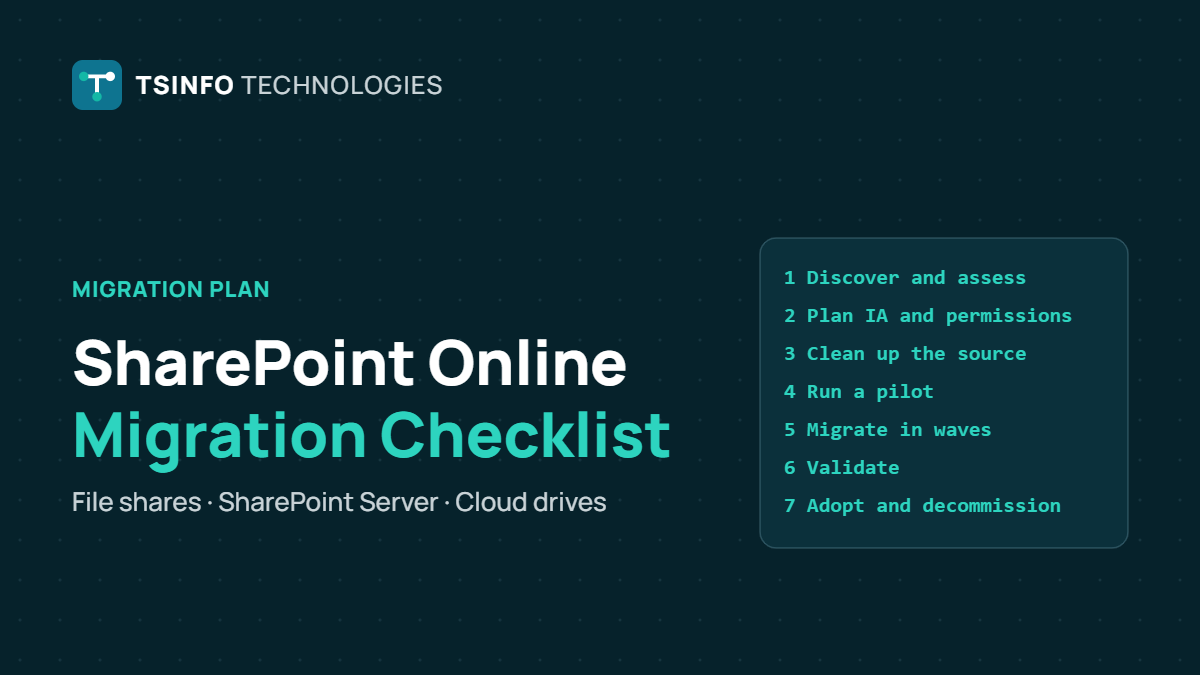
Quick answer: a good sharepoint online migration checklist runs in seven phases: discover and assess, plan the information architecture and permissions, clean up, pilot, migrate in waves, validate, then drive adoption and retire the old system.
Microsoft’s free tools, Migration Manager and the SharePoint Migration Tool, handle the copying; the planning is on you.
What You Can Migrate to SharePoint Online
We migrate from almost anything to SharePoint Online. If you are still deciding whether the cloud fits, our comparison of SharePoint Online and on-premises SharePoint covers the trade-offs.
Microsoft offers two free tools, and the source decides which one you use:
| Source | Microsoft tool | Notes |
|---|---|---|
| Windows file shares | Migration Manager or SPMT | Migration Manager scales with multiple agents; source must support SMB 2.0 or higher |
| SharePoint Server 2010, 2013, 2016, 2019 and SharePoint Foundation 2010, 2013 | SharePoint Migration Tool (SPMT) | Can also move some classic workflows to Power Automate |
| Google Workspace, Box, Dropbox, Egnyte | Migration Manager | Built into the SharePoint admin center |
| Amazon S3 or Azure Blob storage | Not supported by Migration Manager | Plan a partner tool or a staged copy |
Both tools copy content; your source files are not deleted. That gives you a safe rollback window, but it also means you must plan when the old system becomes read-only.
Phase 1: Discover and Assess
You cannot plan what you have not measured. Start with an inventory and a list of known problems before anyone picks a cutover date.
- List every source: file servers, SharePoint farms, cloud drives and the business owner of each.
- Capture total size, file counts, the largest folders and the deepest folder paths.
- Run a scan: SPMT and Migration Manager both scan before they migrate. For older farms, the SharePoint Migration Assessment Tool (SMAT) flags issues.
- Inventory customizations: classic workflows, InfoPath forms, custom code and classic pages.
- Note files that break SharePoint rules, covered in the limits table below.
Most teams find that a large share of the data has not been opened in years.
That finding drives Phase 3, and it is exactly where a SharePoint consulting and migration team saves the most time.
Phase 2: Plan Information Architecture and Permissions
Do not recreate your old drive letters in the cloud. Map each department or project to a site, then group related sites under hub sites.
Microsoft recommends hub sites over subsites, and every navigation level is limited to 500 child links. A clear structure is also the foundation of good document management in SharePoint.
- Decide what becomes a team site (collaboration) and what becomes a communication site (publishing).
- Replace deep folders with libraries, metadata columns and views where it helps.
- Build permissions on Microsoft 365 groups and site roles, not on individual users.
- Keep unique permissions rare. Microsoft supports 50,000 per list or library but recommends staying near 5,000.
- Write a mapping sheet: every source path, its target site and library, and its owner.
If you are new to how sites, libraries and Microsoft 365 groups fit together, our guide on what SharePoint Online is and how it works is a good primer.
Phase 3: Prepare and Clean Up the Source
Every file you skip is a file you never have to validate. Archive or delete stale content with the business owner’s sign-off, then fix the items that will fail.
| SharePoint Online limit | Value (Microsoft Learn) | What to do before migrating |
|---|---|---|
| File upload size | 250 GB per file | Find oversized files such as old backups and media exports |
| Total path length | 400 characters for the decoded path, including the file name | Flatten deep folders and shorten long names |
| Invalid characters | ” * : < > ? / \ | and leading or trailing spaces | Rename, or let the tool report and fix them |
| Reserved names | .lock, CON, PRN, AUX, NUL, COM0-COM9, LPT0-LPT9, desktop.ini, _vti_ | Rename or exclude |
| List view threshold | 5,000 items per view | Plan indexed columns and filtered views for large libraries |
| Breaking inheritance | Not allowed on a list, library or folder with more than 100,000 items | Set folder permissions before the library grows |
| Sync recommendation | No more than 300,000 files synced in one library | Avoid one giant library that everyone syncs |
For ideas on structuring libraries before you fill them, see our SharePoint document management best practices.
Phase 4: Run a Pilot
Pick one department with real but manageable content, ideally with a few ugly folders. Migrate it end to end and treat it as a rehearsal.
- Measure throughput so you can estimate the remaining waves realistically.
- Review the tool reports for failed, skipped and renamed files.
- Have pilot users check permissions, version history, metadata and their most-used files.
- Collect feedback on the new structure and adjust the mapping sheet before scaling up.
Pilots also expose network bottlenecks. For very large file shares, Microsoft supports shipping data on Azure Data Box and then using SPMT to finish the move.
Phase 5: Migrate in Waves
Group content by department or business process, not by server. Each wave follows the same rhythm, which keeps support load predictable.
- Announce the wave date and the new location to affected users.
- Run the initial copy during business hours or overnight, depending on load.
- Run incremental passes to pick up files changed since the first copy.
- Set the source to read-only at cutover and run the final pass.
- Redirect mapped drives, shortcuts and links to the new sites.
Give migration staff only the access they need. Microsoft now offers a Migration Administrator role for Migration Manager, so the team does not need full SharePoint admin rights.
Phase 6: Validate Content, Permissions and Workflows
Do not sign off a wave based on a green progress bar. Compare file counts and sizes against the source and spot-check the folders with known issues.
Workflows need their own check. SharePoint 2010 workflows were retired in November 2020, and SharePoint 2013 workflows were fully retired for existing tenants on April 2, 2026, so none of them run in SharePoint Online.
SPMT can convert SharePoint 2010 out-of-the-box workflows and SharePoint Designer 2010 and 2013 workflows into Power Automate flows. It moves definitions and associations, not workflow history, and it skips site workflows.
Complex approvals usually need a proper rebuild by a Power Automate development team. Old custom code and classic web parts are a job for SharePoint Framework development.
Phase 7: Adopt, Govern and Decommission
A migration is finished when people stop asking for the old drive. Train site owners, publish a short “where things live now” page, and keep a help channel open for the first weeks.
- Assign at least two owners per site and review access quarterly.
- Set sharing and retention policies before content starts growing again.
- Keep the source read-only for an agreed period, then archive and decommission it.
Many companies use the migration to launch a proper SharePoint intranet home for employees, which gives people one front door to the new sites.
Common Mistakes to Avoid
- Lifting and shifting dead data. It slows every wave and clutters search.
- Copying permissions sprawl. Years of one-off folder shares pile up as unique permissions that nobody can audit.
- Ignoring workflows until after cutover. Classic SharePoint workflows no longer run online, so rebuild them first.
- Recreating the folder tree. Deep nesting hits the 400-character path limit and makes files harder to find.
- Skipping the pilot. Throughput and naming problems show up in week one instead of the night before go-live.
- No owner per site. Without an owner, a new site drifts the same way the old file share did. Our list of common SharePoint site owner mistakes shows what to watch for.
Next Steps
Start with Phase 1 this week: list your sources, their owners and their size. That inventory alone turns a vague project into a plan you can schedule.
If you want help building the plan or running the waves, book a free migration consultation and we will review your sources and suggest a realistic approach.
Frequently Asked Questions
Keep Learning
- Deciding where files should live? Read SharePoint vs OneDrive vs Teams.
- Comparing cloud file options? See Azure Files vs SharePoint.
- Setting up new owners? Learn what a SharePoint site owner does.