Your sales team lives in Salesforce, but the contracts, proposals and statements of work live in SharePoint.
So reps jump between two tabs, upload copies into Salesforce, and nobody is sure which version the customer actually signed.
Quick answer: SharePoint integration with Salesforce usually means one of four options: Salesforce Files Connect to show SharePoint files inside Salesforce, Power Automate cloud flows that move data and create folders between the two, a third-party AppExchange app, or a custom build on Microsoft Graph.
Most organizations start with Files Connect or Power Automate.
Why Connect SharePoint and Salesforce?
Salesforce is great at accounts, opportunities and cases. SharePoint Online is built for documents: libraries, versioning, metadata, coauthoring in Office and retention.
If you are new to it, our overview of what SharePoint Online does for a business covers the basics.
When the two are not connected, files get duplicated. A proposal is emailed, saved to SharePoint, then uploaded again to the opportunity.
Edits happen in one copy and not the other. Permissions drift, and the document trail for an audit is split across two systems.
A good integration keeps one master copy of each file in SharePoint and gives Salesforce users a fast way to find and open it from the record they are working on.
That is the goal for every option below.
- One source of truth: the file lives in SharePoint, with its version history and retention rules.
- Less switching: reps open the right folder from the account or opportunity.
- Consistent structure: every new account or deal gets the same folder layout automatically.
- Cleaner governance: SharePoint permissions, sensitivity labels and retention still apply to the file.
The 4 Ways to Integrate SharePoint with Salesforce
Each option solves a slightly different problem. Before you pick one, decide what you actually need: viewing SharePoint files from Salesforce, automating folders and metadata, or a fully custom experience. This table summarizes the trade-offs.
| Option | Effort | Best for | Main limits |
|---|---|---|---|
| Salesforce Files Connect | Low to medium (admin setup on both sides) | Browsing, sharing and searching SharePoint files from Salesforce | No automatic folder per record; Copy mode stores copies; Reference mode has no previews |
| Power Automate cloud flows | Medium (low-code) | Creating folders, moving files and syncing fields when records change | Salesforce connector is premium; API throttling; polling triggers |
| Third-party AppExchange app | Low (configure a product) | A packaged, record-level SharePoint experience inside Salesforce | Vendor lock-in, separate licensing, security review of the vendor |
| Custom build with Microsoft Graph | High (developers) | Unique UX, large volumes or strict security rules | You own the code, the app registration and ongoing maintenance |
There is no single right answer. Many of the teams we work with combine two: Files Connect for browsing, plus a cloud flow that creates the folder structure.
Our Power Platform consulting team often starts with a short workshop to map which records need documents.
Option 1: Salesforce Files Connect
Files Connect is the Salesforce feature that lets users access, share and search files from external systems, including SharePoint Online and OneDrive for Business.
Salesforce documents it for Professional, Enterprise, Performance, Unlimited and Developer Editions for cloud data sources. Check with Salesforce whether your contract needs anything extra.
Copy mode vs Reference mode
When you enable Files Connect, you choose how files are shared. Copy stores a copy of the external file in Salesforce, so people without SharePoint access can open it.
Reference only points to the file in SharePoint, so access follows SharePoint permissions, but there are no file previews.
Salesforce recommends Copy for sharing with external customers or partners, and Reference when you want SharePoint access restrictions to carry over.
In both modes, files in Salesforce do not pick up later revisions made in SharePoint, though Reference points to the latest version in SharePoint.
Setup steps at a high level
- In Salesforce Setup, search for Files Connect, then select Enable Files Connect and choose Copy or Reference.
- Give users and admins the Files Connect Cloud system permission, ideally through a permission set.
- Create an authentication provider in Salesforce (OpenID Connect) with placeholder values and copy its callback URL.
- Register an app in Microsoft Entra ID with that callback URL as a web redirect URI, create a client secret and add the SharePoint API permissions you need.
- Put the app’s client ID and secret back into the Salesforce authentication provider.
- Define the external data source for SharePoint Online and pick an identity type: Per User or Named Principal.
- Optionally create an external object so SharePoint files show up in Salesforce global search.
The identity type matters. Per User makes each person sign in to SharePoint, so they only see what SharePoint lets them see.
Named Principal uses one shared set of credentials for everyone, which is simpler but exposes whatever that account can reach.
Files Connect is strong for browsing and sharing, but it does not create a SharePoint folder for each account or opportunity. If you want that, pair it with a flow.
A clean library design helps either way; our SharePoint document management best practices cover folders versus metadata.
Option 2: Power Automate Cloud Flows
Power Automate has a Microsoft-published Salesforce connector and a SharePoint connector, so you can build automation between the two without writing code.
This is the most flexible low-code route, and it is where most of our Power Automate development work on CRM projects happens.
What the connectors can do
The Salesforce connector has two triggers, When a record is created and When a record is modified, both scoped to an object type such as Account, Opportunity or Case.
Actions include Get record, Get records, Create record, Update record (V3), Execute a SOQL query and Send an HTTP request for any Salesforce REST call.
On the SharePoint side, the useful actions are Create new folder, Create file, Update file properties, Create sharing link for a file or folder and Send an HTTP request to SharePoint.
Our guide to the Power Automate connectors teams use most explains how connectors and connections work.
Example: a SharePoint folder for every new opportunity
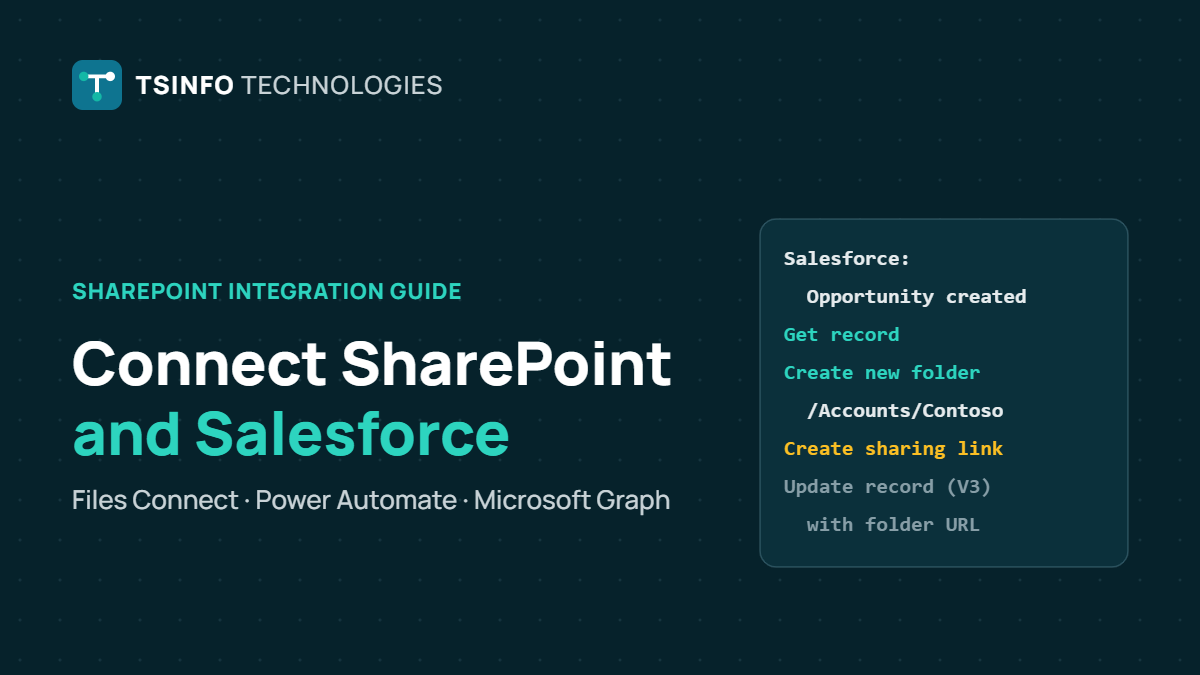
This is the most requested pattern. When a rep creates an opportunity at Contoso, a flow builds the folder in SharePoint and writes the link back to Salesforce.
- Trigger: Salesforce When a record is created, object type Opportunity, with a filter query if you only want certain record types.
- Use Get record to read the related account name if you want folders grouped by account.
- SharePoint Create new folder in your Opportunities library, for example /Accounts/Contoso/Q3 renewal. The action can create the full folder path.
- Optionally Create sharing link for a file or folder with an organization-only scope.
- Salesforce Update record (V3) to save the folder URL in a custom URL field on the opportunity.
- Add a scope with run-after settings to catch failures and notify the flow owner.
The same idea works for cases, contracts or accounts. You can also go the other way, for example updating a Salesforce field when a contract file in SharePoint is marked as signed.
For more patterns, see our real-world Power Automate examples.
Limits and licensing to plan for
The Salesforce connector is a premium connector in Power Automate and Power Apps, while the SharePoint connector is standard.
Premium connectors need a Power Automate Premium user license or a Process license assigned to the flow, so check current licensing before you build.
- Throttling: 900 API calls per connection every 60 seconds for Salesforce, and 600 per connection every 60 seconds for SharePoint.
- API access: the Salesforce user needs API Enabled, and Salesforce trial orgs do not have API access.
- Session settings: the Salesforce setting that locks sessions to the originating IP address can block the connection.
- Attachments: the modified trigger detects record changes, not attachment changes on standard objects.
- Regions: the Salesforce connector is not available in US Government (GCC, GCC High) or DoD clouds.
The connector supports a Salesforce account sign-in or Microsoft Entra ID single sign-on. If your team builds many CRM flows, a business process automation plan keeps naming, connections and error handling consistent.
Option 3: Third-Party AppExchange Apps
Several vendors sell packaged SharePoint connectors on the Salesforce AppExchange. They usually add a document component to record pages, create folders per record and handle uploads from Salesforce straight into SharePoint.
These apps are quick to stand up, but you are adding another vendor that stores tokens to your Microsoft 365 tenant. Before you buy, ask your security team to review these points:
- Which Microsoft Graph or SharePoint permissions the app requests, and whether it needs tenant-wide access.
- Where file content and metadata are processed or cached, and for how long.
- How the app maps SharePoint permissions to Salesforce users.
- Licensing model, support terms and what happens to your folder links if you cancel.
We do not recommend specific vendors. The right choice depends on your Salesforce edition, data residency rules and how much control you want.
Option 4: Custom Integration with Microsoft Graph
When packaged tools do not fit, developers can call Microsoft Graph directly from Salesforce (Apex or middleware) or from an Azure-hosted service. Graph is the API for SharePoint and OneDrive files in Microsoft 365.
For example, the Graph Create a new folder call posts a small JSON body to a drive item’s children:
POST https://graph.microsoft.com/v1.0/sites/{site-id}/drive/items/{parent-item-id}/children
Content-Type: application/json

{
  "name": "Contoso - Q3 renewal",
  "folder": { },
  "@microsoft.graph.conflictBehavior": "rename"
}
For an app that runs without a signed-in user, the least privileged application permission for this call is Files.ReadWrite.All, with Sites.ReadWrite.All as the higher option.
The conflictBehavior value controls what happens if the folder already exists.
A custom build gives you full control over the user experience, error handling and volume. It also means you own the app registration, secrets rotation and code updates.
If you want a SharePoint-side view of Salesforce data, our SharePoint Framework development service builds custom web parts that call these APIs.
Security and Governance Checklist
Whichever option you choose, the same governance questions come up. Settle them before go-live, not after the first access complaint.
- Least privilege: request only the Microsoft Entra ID and Salesforce permissions the integration needs. Avoid broad “view all” style rights for service accounts.
- Service accounts: use a dedicated account or app registration for flows and integrations, not a person who might leave.
- Permissions model: decide whether SharePoint access should follow Salesforce roles, or stay managed in SharePoint.
- External sharing: confirm how partner and customer access works, especially with Files Connect Copy mode.
- Retention: keep retention and legal hold on the SharePoint side, where the master copy lives.
Our SharePoint document management services team sets up libraries, metadata and retention so documents linked from Salesforce stay organized and compliant.
Common Mistakes to Avoid
- Storing files in both systems. Pick SharePoint as the master and link to it. Duplicate copies drift apart fast.
- Building the flow under a personal account. When that person leaves or their password changes, the connection breaks.
- Ignoring the premium license. A flow that uses the Salesforce connector needs premium licensing. Plan it before the pilot, not after.
- No folder naming rule. Account names change and contain characters SharePoint does not like. Use record IDs or a cleaned name.
- Skipping error handling. Throttling and expired connections happen. Add retries, a failure branch and an alert.
Many of these problems start on the SharePoint side. Our list of common SharePoint site owner mistakes is a useful pre-launch check.
Next Steps
Start small. Pick one record type, usually opportunities or cases, decide where the files should live and test one option with a pilot group.
Once the folder structure and permissions feel right, roll it out to the rest of the team.
If you would like help choosing between Files Connect, a cloud flow or a custom build, book a free consultation with our team and we will review your setup with you.
Frequently Asked Questions
Keep Learning
- Comparing automation tools? Read Power Automate vs Logic Apps vs Azure Functions.
- Need layout ideas for deal documents? Browse practical SharePoint document library examples.
- Still on a server farm? See SharePoint Online vs SharePoint on-premises.