Everyone agrees AI agents could help, but the hard part is picking what to build.
Most teams start with a vague idea like “an HR bot” and stall when nobody can say what it should actually do.
We find it easier to start from concrete jobs. Below are the agents we see make sense for HR, IT, sales and operations teams, each mapped to the Copilot Studio features it needs.
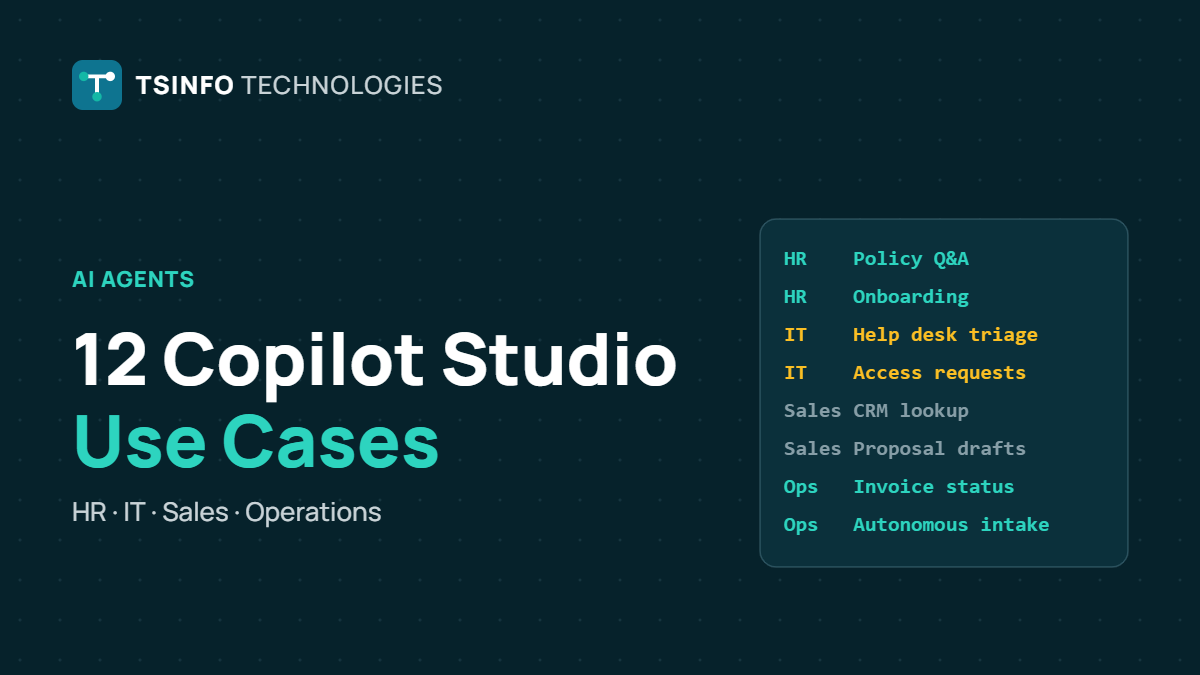
Quick answer: the most practical copilot studio use cases are policy Q&A, onboarding, leave and access requests, help desk triage, CRM lookups, proposal drafting, lead capture, invoice status, procurement requests and autonomous agents that process incoming files.
Start with one high-volume, low-risk question flow, then add tools and triggers.
What Makes a Good Copilot Studio Use Case?
Copilot Studio is Microsoft’s low-code studio for building agents and workflows. An agent follows your instructions, answers from the knowledge sources you connect and uses tools to take action.
That gives you four building blocks to match against any idea:
- Knowledge: SharePoint, uploaded documents, Dataverse tables, public websites and Copilot connectors.
- Tools: prebuilt and custom connectors, agent flows, prompts, REST APIs, MCP servers and computer use.
- Event triggers: let an agent act on its own when something happens, such as a new SharePoint item or a recurring schedule.
- Channels: Teams and Microsoft Copilot, SharePoint, a custom website, mobile apps and more.
A good use case needs at most two or three of these at first. If you only need answers from documents, our guide to Microsoft Copilot agents for business teams covers lighter options too.
HR Use Cases
1. HR policy and benefits Q&A agent
Employees ask the same questions every week: how many vacation days carry over, what the dental plan covers, how to submit a tuition reimbursement.
This agent answers from your handbook and benefits documents, with citations, in Teams.
Copilot Studio features: a SharePoint knowledge source pointed at the HR site, the Teams and Microsoft Copilot channel, and generative answers.
Tip: SharePoint knowledge uses each user’s Microsoft Entra ID permissions, so the agent only surfaces content that person can open. Clean up old policy versions first; well-organized SharePoint document management matters more than the prompt.
2. New-hire onboarding assistant
A new employee in your Chicago office wants to know where to find the org chart, who to call about a laptop and which training is due in week one.
The onboarding agent answers those questions and points to the right forms.
Copilot Studio features: SharePoint and uploaded-document knowledge, plus an optional event trigger. Microsoft’s own example is a trigger for when a new team member is added that sends a welcome message with onboarding resources.
Tip: Start with answers only. Add the welcome trigger after you have tested the content with two or three recent hires.
3. Leave request agent
Instead of hunting for a form, an employee asks for Friday off in a Teams chat. The agent collects the dates and reason, then starts an approval with the manager.
Copilot Studio features: an agent flow added as a tool. Agent flows support human-in-the-loop actions such as approval requests, and the agent fills the flow’s inputs by asking follow-up questions.
Tip: Keep the leave records in a SharePoint list or Dataverse table you already use. If you want a full app around the process, compare it with our ready-made leave request app.
IT Use Cases
4. Help desk triage agent
Users describe a problem in plain language. The agent suggests known fixes from your knowledge base and, if that fails, logs a ticket with the details it already collected.
Copilot Studio features: knowledge sources for troubleshooting articles, a connector or agent flow that creates the ticket, and the Escalate system topic.
Our step-by-step guide to building an AI agent in Copilot Studio walks through instructions, knowledge, tools and testing.
If you run Dynamics 365 Customer Service, a Transfer conversation node hands the chat to a live agent with the full history.
Tip: Write clear tool descriptions. Generative orchestration picks tools by name and description, so “Create IT ticket for hardware or software issues” beats “Flow 3”.
Teams that prefer an app can start with our IT help desk app for Microsoft 365.
5. Password and access request routing
Someone needs access to the finance SharePoint site or a software license. The agent captures the request, checks which group owns it and routes it to the right approver.
Copilot Studio features: an agent flow with an approval step, plus connectors to read and post messages in Teams. You can set Ask the end user before running on sensitive tools so users confirm first.
Tip: Do not let the agent reset passwords or grant access by itself on day one. Route requests to people, log every decision and automate only the standard, low-risk cases later.
6. IT knowledge answers agent
This one is simpler: an agent that answers how-to questions about VPN setup, printer mapping or approved software. It reduces repeat tickets without touching any system.
Copilot Studio features: SharePoint or uploaded documents as knowledge, published to Teams and Microsoft Copilot. Turn off Allow ungrounded responses so the agent only answers from your content.
Tip: Assign an owner to each knowledge article. Our SharePoint services team often restructures IT wikis before an agent goes live.
Sales Use Cases
7. Account research and CRM lookup in Dynamics 365
Before a call, a rep asks: “What open opportunities do we have with Contoso, and who is the main contact?” The agent pulls the answer from Dynamics 365 Sales data.
Copilot Studio features: Dataverse tables (accounts, contacts, opportunities) as knowledge, up to 15 tables per knowledge source. Add synonyms and glossary terms so the agent knows that “deal size” means your custom revenue column.
Tip: Dataverse knowledge requires the Authenticate with Microsoft option and Dataverse search turned on. Reps only see records their security role allows.
8. Proposal drafting from SharePoint content
Proposal teams copy the same company overview, case descriptions and security answers into every response. This agent finds approved content in SharePoint and drafts a first version of each section.
Copilot Studio features: SharePoint knowledge for the approved content library and a prompt tool, which is a single-turn model prompt that can reference knowledge you provide.
Tip: Keep humans in charge of the final draft. Tag outdated content clearly or move it out of the library, because the agent cannot tell an old answer from a current one.
9. Website lead qualification agent
A visitor on your website asks about services. The agent answers from your public pages, asks a few qualifying questions and creates a lead for the sales team.
Copilot Studio features: a public website knowledge source, the custom website channel and a tool that writes the lead to Dataverse or your CRM.
Tip: Public website agents usually run with No authentication, which means anyone with the link can chat and tools cannot use user credentials. Give lead-creation tools maker-provided credentials with narrow permissions.
Operations and Finance Use Cases
10. Invoice and expense status agent
Vendors and employees keep asking accounts payable whether an invoice has been paid yet. The agent looks up status by invoice or claim number and answers in seconds.
Copilot Studio features: a connector or agent flow that reads your finance system or a SharePoint list, plus the Teams channel for employees.
Tip: Return only the fields people need, such as status and expected date, and authenticate users. For expense claims, our expense claim request app can feed the same data.
11. Procurement request agent
An employee needs new monitors for a team. The agent asks what, how many and why, checks the approved vendor list and starts a purchase approval with budget owners.
Copilot Studio features: Dataverse or SharePoint knowledge for the vendor list and an agent flow with approval steps and connectors to your purchasing system.
Tip: Agent flows are deterministic, so they are the right place for approval rules. Our Power Automate development team builds these flows so the agent decides and the flow does the work.
Not sure which steps belong in the agent and which in a flow? Our Copilot Studio vs Power Automate comparison draws that line.
12. Autonomous agent for incoming files
Invoices, contracts or forms land in a SharePoint library or OneDrive folder. The agent wakes up on its own, reads the file, extracts key fields, updates a list and notifies the owner.
Copilot Studio features: event triggers such as When an item is created in SharePoint or When a file is created in OneDrive, with tools to update records and send messages.
You add them from Overview > Triggers > Add trigger.
Tip: Event triggers run with the maker’s credentials, and every payload counts toward usage. Scope the trigger narrowly and check the Activity page after launch. This is where end-to-end business process automation pays off.
All 12 Copilot Studio Use Cases at a Glance
Use this table to see which features each agent needs. Answer-only agents are the fastest to ship, while trigger-based agents need the most governance.
| # | Use case | Department | Main features | Channel |
|---|---|---|---|---|
| 1 | Policy and benefits Q&A | HR | SharePoint knowledge | Teams and Microsoft Copilot |
| 2 | Onboarding assistant | HR | Knowledge, optional event trigger | Teams |
| 3 | Leave requests | HR | Agent flow with approval | Teams |
| 4 | Help desk triage | IT | Knowledge, ticket tool, Escalate topic | Teams |
| 5 | Access request routing | IT | Agent flow with approval | Teams |
| 6 | IT knowledge answers | IT | SharePoint or document knowledge | Teams and Microsoft Copilot |
| 7 | CRM lookup | Sales | Dataverse knowledge | Teams and Microsoft Copilot |
| 8 | Proposal drafting | Sales | SharePoint knowledge, prompt tool | Teams |
| 9 | Lead qualification | Sales | Website knowledge, Dataverse tool | Custom website |
| 10 | Invoice and expense status | Finance | Connector or agent flow | Teams |
| 11 | Procurement requests | Operations | Agent flow with approvals | Teams |
| 12 | Autonomous file intake | Operations | Event trigger, tools | None (runs on its own) |
Most of our Copilot Studio development projects begin with one row from this table and add the next one only after the first is in daily use.
How to Pick Your First Use Case
Pick the question your team answers most often, not the most impressive demo. A good first agent has three traits:
- High volume: people ask it every day, so you get feedback quickly.
- Clean content: the answers already exist in one current SharePoint site or document set.
- Low risk: a wrong answer is annoying, not costly. Policy Q&A and IT how-to answers fit well.
If the job is a personal or small-team Q&A helper, Copilot Studio may be more than you need. Our Agent Builder vs Copilot Studio comparison helps you decide before you start building.
Governance Before You Go Live
Every use case above touches company data, so plan governance alongside the build. Admins can use data policies to block specific connectors, channels or event triggers in an environment.
- Authentication: keep Authenticate with Microsoft for internal agents so knowledge respects each user’s permissions.
- Maker credentials: triggers and maker-provided tools act with the author’s access. Use a service account with narrow rights and review what users could reach through it.
- Capacity: agent flow actions and trigger payloads consume Copilot Studio capacity, so watch usage in the Power Platform admin center.
- Testing: publish to yourself first in Teams, test with real questions, then share more widely.
A Power Platform governance plan with environments, data policies and naming rules keeps agent sprawl under control as more departments join.
Common Mistakes to Avoid
- Building one agent for everything. Microsoft advises keeping an agent to 25 to 30 tools for best results. Separate HR, IT and sales agents are easier to own and test.
- Pointing the agent at messy content. Old drafts and duplicate policies produce confident wrong answers.
- Skipping the human step. Approvals, access and money decisions should go through a person in an agent flow.
- Forgetting trigger costs. A recurrence trigger every 10 minutes sends a message to the agent every 10 minutes.
- No owner after launch. Someone must review analytics and update knowledge monthly.
If you need connectors to line-of-business systems or a multi-agent design, plan for custom AI agent development rather than stretching a low-code prototype.
If the design needs custom models or full code control, compare Copilot Studio vs Microsoft Foundry before you commit to a platform.
Next Steps
Choose one use case from the table, confirm the content is clean and build a small pilot for one team. When it proves itself, add a tool or a trigger and expand.
Need extra hands? You can hire a dedicated Copilot Studio developer or book a free consultation to map your first agent with our team.
Frequently Asked Questions
What is Copilot Studio used for?
Copilot Studio is used to build and manage AI agents and workflows that answer questions from company knowledge, take actions through connectors and flows, and run in Teams, Microsoft Copilot, websites and other channels.
What are some Copilot Studio examples for HR?
Common HR examples are a policy and benefits Q&A agent grounded in SharePoint, a new-hire onboarding assistant and a leave request agent that starts a manager approval through an agent flow.
Can Copilot Studio agents work without a user asking?
Yes. Event triggers let an agent act autonomously when something happens, such as a new SharePoint item, a new OneDrive file or a recurring schedule. Triggers use the maker’s credentials and count toward usage.
Can a Copilot Studio agent read Dynamics 365 data?
Yes. You can add Dataverse tables, including Dynamics 365 tables, as a knowledge source with up to 15 tables per source. The agent must use Authenticate with Microsoft and Dataverse search must be on.
Which Copilot Studio use case should we build first?
Start with a high-volume, low-risk question flow such as HR policy or IT how-to answers, grounded in clean SharePoint content. See Microsoft Learn: Copilot Studio overview for the full feature set.
Keep Learning
- Looking for flow ideas to pair with agents? Browse real Power Automate examples.
- Connecting agents to other systems? See the Power Automate connectors we use most.
- Preparing content for agents? Start with SharePoint document management best practices.