Most teams know Power Apps can replace paper forms and messy spreadsheets. The harder question is what to build first, and what a good app actually looks like behind the screens.
Quick answer: the most common power apps examples are request and approval apps (leave, travel, expenses, purchases), IT help desk and asset tracking, mobile inspection and inventory apps, and simple sales or customer trackers.
Most run on SharePoint lists or Dataverse, with Power Automate handling approvals and notifications.
What Good Power Apps Examples Have in Common
Every example below replaces a process that already lives in email, paper or Excel, with a clear owner and data that fits a list.
For each app we list the data source, the app type and the flows behind it. Canvas apps give you a free-form, mobile-friendly screen.
Model-driven apps build their layout from Dataverse tables and suit record-heavy processes.
Several of these are available as ready-made apps on our Power Apps business apps page, and our Power Apps development team builds the custom ones.
HR Power Apps Examples
1. Employee Leave Request App
Employees pick dates and a leave type and submit. Managers approve from email or Teams, and HR sees who is out.
- Data: SharePoint lists for requests and balances.
- App type: Canvas app, phone or tablet layout.
- Power Automate: Start and wait for an approval to the manager, then update the item and notify the employee.
- Tip: Store the manager in the list or read it from Microsoft Entra ID instead of typing it per request. Our employee leave request app follows this pattern.
2. New Hire Onboarding Checklist
HR adds a new hire and each department sees its tasks: laptop, accounts, badge and training.
- Data: SharePoint lists (hires and tasks) or Dataverse if you need security per department.
- App type: Canvas app for task owners.
- Power Automate: A flow creates the task items from a template list and sends reminders for overdue tasks.
- Tip: Keep the task template in its own list so HR can change steps without editing the app.
3. Employee Pulse Survey
Short, recurring surveys that employees answer on a phone.
- Data: SharePoint list or Dataverse table for responses.
- App type: Canvas app, plus a Power BI report if you need trends.
- Power Automate: A scheduled flow posts the survey link in Teams and sends a reminder before it closes.
- Tip: Decide early whether answers are anonymous. See the employee satisfaction survey app for one approach.
IT Power Apps Examples
4. IT Help Desk Ticketing
Staff log a ticket with a category and screenshot. Technicians work a queue and close tickets with notes.
- Data: SharePoint lists for small teams; Dataverse for larger queues and SLAs.
- App type: Canvas app for requesters; model-driven app works well for the IT queue.
- Power Automate: Flows assign tickets by category, notify the requester on status changes and escalate stale tickets.
- Tip: Start with five to eight categories. Our IT help desk Power Apps app shows a complete version.
5. Equipment Checkout with Barcode Scanning
Staff scan an asset tag to check laptops or tools in and out, and see who has what.
- Data: SharePoint list or Dataverse table of assets and a checkout log.
- App type: Canvas app on phones.
- Power Automate: A daily flow emails people whose checkout is overdue.
- Tip: Use the barcode reader control, which scans QR codes and most common barcodes on Android, iOS and Windows devices. It does not scan in a web browser, so users need the Power Apps mobile app.
6. Software and Access Requests
Employees request a license or system access, the right approver signs off and IT gets a task.
- Data: SharePoint list or Dataverse.
- App type: Canvas app, often embedded as a tab in Microsoft Teams.
- Power Automate: A sequential approval (manager, then system owner) followed by a task for IT.
- Tip: Keep a list of systems and owners so the flow picks the approver.
Finance Power Apps Examples
7. Expense Claims with Receipt Photos
Employees add expense lines with a receipt photo for each. Approvers see totals and receipts in one place.
- Data: SharePoint list plus a document library for receipts, or Dataverse.
- App type: Canvas app, phone layout.
- Power Automate: Manager approval, then finance review, then a notification when the claim is processed.
- Tip: Validate required fields before submit. The expense claim request app handles multi-line claims.
8. Purchase Requests
Requesters describe the item, vendor and cost center, and approvals route by amount before anyone orders.
- Data: SharePoint lists or Dataverse; some teams read vendors from SQL Server.
- App type: Canvas app.
- Power Automate: Approval rules by amount threshold, then a notification to purchasing.
- Tip: SQL Server is a premium connector in Power Apps, so every user needs a premium license if the app touches it.
9. Travel Requests
Employees submit trip details and estimated costs, and managers approve before anyone books.
- Data: SharePoint list.
- App type: Canvas app.
- Power Automate: Approval flow plus a confirmation email with the approved trip details.
- Tip: Add a business reason field. Our travel requests app includes that out of the box.
Operations and Field Power Apps Examples
10. Safety Inspection Checklist
Supervisors walk a site, answer checklist questions and take photos. Failed items become follow-up tasks.
- Data: Dataverse, if inspectors work without signal.
- App type: Canvas or model-driven app in the Power Apps mobile app.
- Power Automate: A flow creates corrective actions for failed items and emails the site manager a summary.
- Tip: Dataverse apps get built-in offline-first support in the mobile app. Other sources only get basic offline storage with SaveData and LoadData, and browser apps cannot run offline at all.
11. Inventory Counts
Warehouse staff scan items, enter counts and flag low stock.
- Data: Dataverse, or SQL Server if inventory already lives in an ERP database.
- App type: Canvas app on phones or rugged tablets.
- Power Automate: A flow alerts purchasing when an item drops below its reorder point.
- Tip: Use the barcode reader’s scan multiple mode on iOS and Android to count several items in one session.
12. Incident and Near-Miss Reporting
Any employee reports an incident with photos and the location from the phone.
- Data: SharePoint list or Dataverse.
- App type: Canvas app.
- Power Automate: A flow notifies the safety lead right away.
- Tip: The Location signal gives latitude and longitude from the device. Ask users to allow location access the first time.
13. Maintenance Work Orders
A planner assigns requests, and technicians update status, parts and time from the field.
- Data: Dataverse tables for assets, work orders and parts.
- App type: Model-driven app for planners, canvas app for technicians.
- Power Automate: Flows assign work orders and notify requesters when the job is done. Our Power Automate development services team builds this routing.
- Tip: Use the pen input control to capture a customer or supervisor signature on completion.
Sales and Customer Power Apps Examples
14. Sales Visit Log
Reps log visits, notes and next steps from their phone right after a meeting.
- Data: Dataverse or a SharePoint list.
- App type: Canvas app, phone layout.
- Power Automate: A weekly flow sends each manager a summary of the team’s visits.
- Tip: Keep the form to five or six fields, or reps will stop using it.
15. Customer and Opportunity Tracker
A lightweight tracker for accounts, contacts and deals for teams that do not need a full CRM.
- Data: Dataverse tables with relationships.
- App type: Model-driven app with views and dashboards.
- Power Automate: Flows send follow-up reminders and notify the team when a deal changes stage.
- Tip: If you need customer-facing screens, complex pricing or a public app, read Power Apps vs custom app development before you commit.
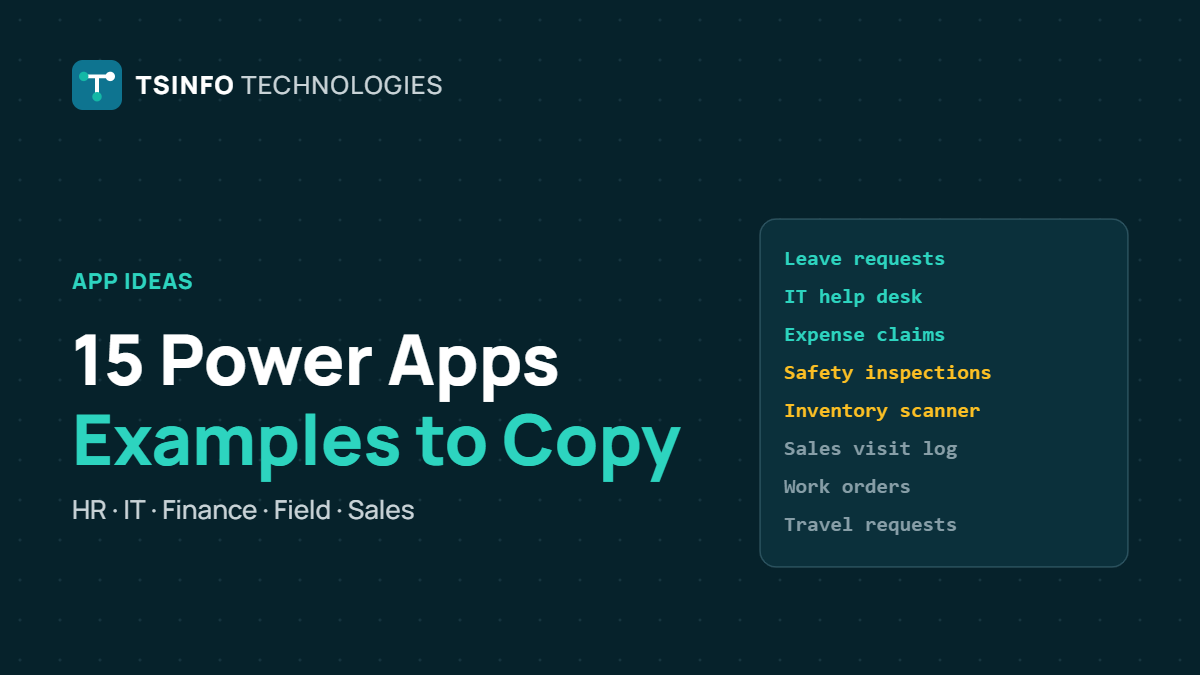
Summary of All 15 Power Apps Examples
| # | Example | Typical data | App type |
|---|---|---|---|
| 1 | Leave requests | SharePoint list | Canvas |
| 2 | Onboarding checklist | SharePoint or Dataverse | Canvas |
| 3 | Pulse survey | SharePoint or Dataverse | Canvas |
| 4 | IT help desk | SharePoint or Dataverse | Canvas + model-driven |
| 5 | Equipment checkout | SharePoint or Dataverse | Canvas (mobile) |
| 6 | Access requests | SharePoint or Dataverse | Canvas in Teams |
| 7 | Expense claims | SharePoint or Dataverse | Canvas |
| 8 | Purchase requests | SharePoint, Dataverse or SQL | Canvas |
| 9 | Travel requests | SharePoint list | Canvas |
| 10 | Safety inspections | Dataverse (offline) | Canvas or model-driven |
| 11 | Inventory counts | Dataverse or SQL | Canvas (mobile) |
| 12 | Incident reports | SharePoint or Dataverse | Canvas |
| 13 | Work orders | Dataverse | Model-driven + canvas |
| 14 | Sales visit log | Dataverse or SharePoint | Canvas |
| 15 | Opportunity tracker | Dataverse | Model-driven |
How to Pick Your First Power Apps Use Case
Pick a process that is painful, frequent and small: one team, one or two lists and one approval.
- List the forms and spreadsheets people complain about most.
- Score each one on how often it runs and how many people it touches.
- Check the data source. SharePoint and Excel in OneDrive work with standard connectors; Dataverse and SQL Server need premium licenses.
- Build a small version, test it with real users, then add features.
Licensing shapes this choice more than features do. Our guide on whether Power Apps is free explains what Microsoft 365 licenses already cover.
If you have Dataverse, Copilot in Power Apps can draft tables from a plain-language description.
Select Start with data, then Create new data, describe what you want to track and review the tables before you build. Availability depends on your region.
If the app lives on a SharePoint site and needs a branded, page-level experience, compare SPFx and Power Apps for SharePoint first.
Common Mistakes to Avoid
- Using Excel as a shared database. Excel needs the data formatted as a table in cloud storage. For multi-user apps, upload it to Dataverse or move it to a SharePoint list.
- Ignoring delegation. Queries that cannot run on the data source only look at the first 500 records by default, or up to 2,000 if you raise the limit.
- Building the whole wish list first. Ship the core form and approval, then add dashboards and extras.
- Forgetting the flows. The app collects data, but approvals, reminders and notifications usually live in Power Automate.
- No owner after launch. Name someone who maintains the app, or it drifts out of date.
Next Steps
Have a process in mind but not sure which example fits? Book a free consultation with our team and we will help you choose the data source, app type and first version.
Frequently Asked Questions
What are Power Apps used for in business?
Mostly internal apps that replace paper forms, email requests and shared spreadsheets. Common examples are leave and expense approvals, help desk tickets, inspections, inventory and simple trackers.
Can Power Apps work offline?
Yes, in the Power Apps mobile app. Dataverse apps get built-in offline-first sync, other sources need SaveData and LoadData, and apps in a web browser cannot run offline. See Microsoft Learn: offline-capable canvas apps.
Can Power Apps scan barcodes?
Yes. The barcode reader control scans QR codes and common barcodes on Android, iOS and Windows devices, but not in a web browser.
Should I use SharePoint or Dataverse for my app?
SharePoint lists suit simple apps covered by Microsoft 365 licenses. Dataverse suits relational data, row-level security, offline use and model-driven apps, and it needs premium licensing.
What is the easiest Power Apps app to build first?
A request and approval app on a SharePoint list, such as leave or travel requests. It has one form, one approval flow and a clear owner.
Keep Learning
- Planning the automation side? Browse real Power Automate examples.
- Storing files for your app? See practical SharePoint document library examples.
- Connecting other systems? Review the Power Automate connectors we use most.
- Scaling to many apps? Talk to our Power Platform consulting team.