Your HR team answers the same questions every week. How much PTO do new hires get?
When does open enrollment start? Where is the remote work policy?
An AI agent can answer those questions in Teams, around the clock, from your own documents.
The hard part is knowing where to start, because Copilot Studio has a lot of screens and settings.
Quick answer: here is how to build an AI agent in Copilot Studio.
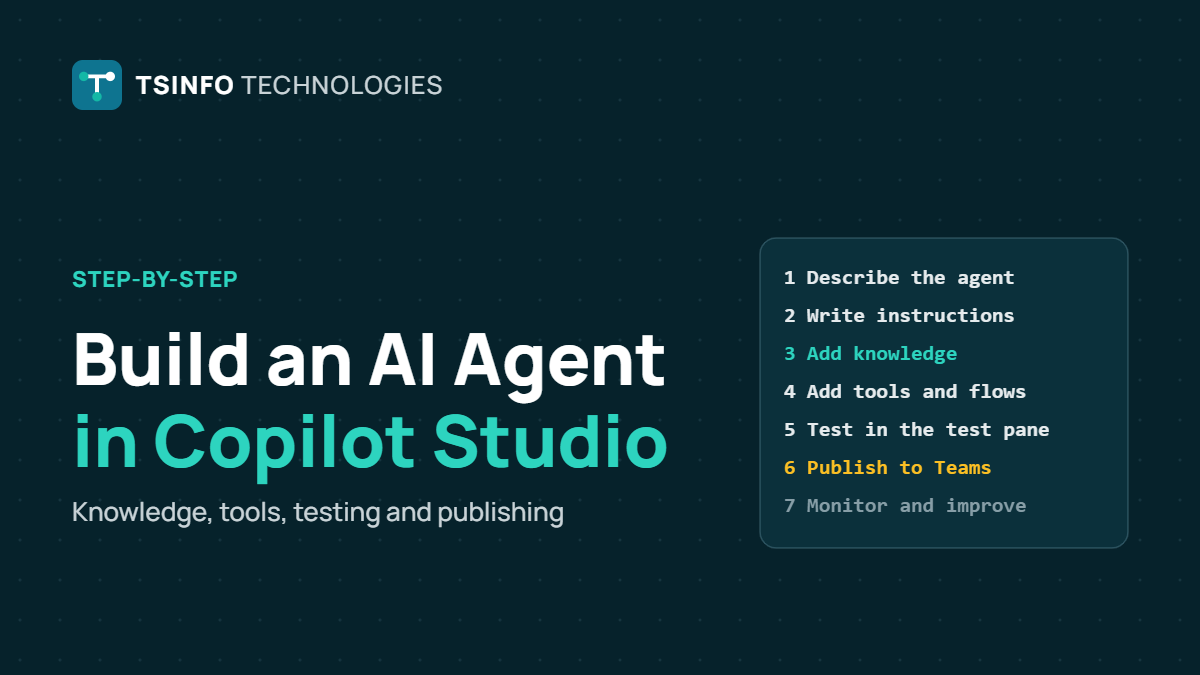
Describe the agent on the Home page, refine its instructions, add knowledge such as a SharePoint site, add tools or agent flows for actions, test it in the test pane, then publish it to Teams and Microsoft Copilot and watch the Monitor page.
We use one running example: an HR policy agent for a Contoso office in Chicago. Every step below shows what we would set for that agent.
What You Need Before You Start
Check four things before anyone opens Copilot Studio. Missing one of them is the most common reason a first agent stalls.
- A maker license. Microsoft lists a Copilot Studio user license (assigned by an admin, and it needs a tenant Copilot Credit subscription), the Copilot Studio authors role, a Microsoft Copilot license, or a trial. A trial lets you build and test, but you can’t publish.
- Capacity for your users. Copilot Studio usage is measured in Copilot Credits, bought as prepaid packs, a prepurchase plan or pay-as-you-go through Azure. People who chat with a published agent don’t need a special license.
- An environment. You build inside a Power Platform environment where you have maker permissions. Uploaded files need Dataverse search turned on in that environment.
- A work account. Copilot Studio rejects personal email addresses at sign-up, and guest users can’t access it.
One licensing detail matters for internal agents.
When users with a Microsoft Copilot license use an agent in Copilot Chat, Teams or SharePoint, generative answers and Microsoft Graph tenant grounding don’t count against your Copilot Studio capacity.
We don’t quote prices; check current licensing with your Microsoft partner.
If you are still deciding what kind of agent you need, our overview of Microsoft Copilot agents for business teams explains the options.
Step 1: Create the Agent
Sign in at copilotstudio.microsoft.com and switch to the right environment. For a simple personal Q&A helper, Agent Builder may be enough instead of Copilot Studio.
Copilot Studio now offers more than one runtime, which Microsoft calls a harness.
This guide uses the standard harness, built for rule-based agents, topics and agent flows.
If your Home page opens in the new experience, turn off New experience or select Other ways to build to reach standard agents.
- On the Home page, type a description of what the agent should do (up to 1,024 characters).
- Copilot Studio generates a name, description and instructions, and suggests knowledge, tools, triggers and channels.
- Select Add on the suggestions you want and Dismiss on the rest. Suggestions don’t persist beyond the session.
- Prefer to start empty? On the Agents page, select Create blank agent, enter a name and select Create.
Pick the primary language before you create the agent, using the gear icon in the description box. You can’t change the primary language later, only add secondary languages.
For our example, we would type: “Answer Contoso employee questions about HR policies, PTO, benefits and holidays for the Chicago office, using the HR policy site.” We would name it Contoso HR Assistant.
Names can be up to 42 characters.
Step 2: Write Clear Instructions
Instructions tell the agent how to behave. Open the Overview page, select Edit in the Instructions section and refine the generated text. You get up to 8,000 characters.
Good instructions cover scope, tone, limits and escalation. For Contoso HR Assistant, we would write something like this:
- Answer only questions about Contoso HR policies, benefits, PTO and holidays.
- Use the HR policy knowledge sources and always include an in-text citation to the source document.
- If a policy differs by location, give the Chicago office version and say so.
- Never give legal, medical or tax advice. For personal cases, offer to send the question to HR.
- Keep answers short and friendly, with steps as a numbered list.
The citation line is not decoration. Microsoft notes that with ungrounded responses turned off, an answer without a citation can be withheld, so asking for citations makes answers more consistent.
Instructions that force rigid formats, such as “respond only in JSON,” can strip the citation markers. Keep them plain.
Step 3: Add Knowledge Sources
Knowledge is what keeps the agent grounded in your content instead of general internet answers. Select Add knowledge on the Overview or Knowledge page.
| Knowledge source | Key requirement or limit (per Microsoft Learn) |
|---|---|
| SharePoint site or folder | Up to 25 URLs with generative orchestration; users need at least Read access; answers respect each user’s permissions |
| SharePoint files without a Microsoft Copilot license in the tenant | Generative answers only use files under 7 MB |
| SharePoint with tenant graph grounding | Files up to 200 MB when a Microsoft Copilot license is in the same tenant and semantic search is on |
| SharePoint lists | Up to 15 lists; queries return data from the first 2,048 rows |
| Uploaded files | Up to 500 files, 512 MB each, stored in Dataverse; no encrypted or password-protected files |
| Public websites | Up to 25 sites; URL depth of two levels; Bing-indexed pages only, no sign-in pages |
| Dataverse | Up to two Dataverse sources with up to 15 tables each |
SharePoint, the source most business agents use
In the Featured section, select SharePoint, paste the site URL, add a name and a detailed description, then select Add to agent. The agent searches that URL and its subpaths, never parent or sibling sites.
A few SharePoint rules catch teams off guard. Only modern pages are used, and modern pages with SPFx components aren’t supported.
Encrypted files, including sensitivity labels that apply encryption, can show as Ready but return no answer.
Agents also can’t answer questions that name a file, such as “What does handbook.pdf say?” That is why tidy libraries and clear page titles matter.
Our SharePoint document management best practices cover the cleanup we usually do first.
For Contoso HR Assistant, we would add the HR policy site and upload the current benefits guide as a PDF. We would leave Web Search off so the agent never mixes in public answers.
Permissions are the real risk here. If a salary spreadsheet is shared with everyone, the agent can surface it to everyone, so a SharePoint document management cleanup belongs before launch.
Step 4: Add Tools and Agent Flows
Knowledge answers questions; tools take action. On the agent’s Tools page, select Add a tool and choose a type: connector, agent flow, prompt, Model Context Protocol (MCP), computer use, REST API or custom connector.
Each tool has a Description, and generative orchestration relies on it to decide when to call the tool.
You also pick End user or Maker-provided credentials, and you can turn on Ask the end user before running.
Agent flows for multi-step work
An agent flow is a low-code automation the agent calls at runtime.
If you’re unsure whether a task belongs in the agent or in a flow, our Copilot Studio vs Power Automate comparison walks through the split.
To appear as a tool, it needs the When an agent calls the flow trigger, a Respond to the agent action, a published state, and a response within the 100-second action limit.
For Contoso HR Assistant, we would add one agent flow called “Send question to HR.” It creates an item in a SharePoint list and posts a Teams message to the HR channel.
The SharePoint and Teams connectors handle both steps.
Microsoft supports up to 128 tools per agent, but recommends 25 to 30 for the best results. Flows that touch HR or finance systems often need experienced Power Automate developers to handle errors and retries.
Step 5: Add Topics Where You Need Control
With generative orchestration, many agents need few custom topics. Topics still help when the conversation must follow a fixed path, such as collecting details before a hand-off.
On the Topics page, select Add a topic, then From blank, or describe the topic and let Copilot build it.
Under generative orchestration, the trigger shows The agent chooses, and the topic description decides when it runs.
For our HR agent, one topic would ask whether the question is about a personal case. If yes, it collects the employee’s question and calls the “Send question to HR” flow.
Fixed paths like this are where agents meet business process automation: the topic gathers the facts, and the flow routes the work.
Avoid periods in topic names. Microsoft notes you can’t export a solution when a topic name contains one.
Step 6: Test in the Test Pane
Select Test at the top of any page to open the Test your agent panel. With generative orchestration, the activity map shows which knowledge, tools and topics the agent picked.
Use the Reset icon to start a clean conversation after changes. Turn on Track between topics from the three-dot menu to follow a path node by node.
For Contoso HR Assistant, we would test at least these question types:
- Plain policy questions: “How many paid holidays does the Chicago office get in 2026?”
- Follow-ups: “Does that include floating holidays?”
- Out-of-scope requests, such as tax advice, to confirm the agent declines politely.
- A personal case, to confirm the topic and agent flow run end to end.
- The same question from a test user with less SharePoint access, to confirm permission trimming.
That last test often exposes broken inheritance or old sharing links. Our SharePoint services team fixes those before an agent goes live.
The test pane is for design-time checks only. Suggested prompts don’t show there, and inactivity triggers may not fire, so test the published agent in Teams too.
Step 7: Review Orchestration and Authentication Settings
Open Settings. In Generative AI, under Orchestration, new agents default to Yes for using generative AI orchestration. Keep it on unless you need strict trigger-phrase behavior.
In the same area, decide on Allow ungrounded responses. For an HR agent we would turn it off, so the agent can’t answer from general model knowledge.
Under Security > Authentication, you choose between three options, and the choice limits your channels:
| Option | Best for | Watch out for |
|---|---|---|
| Authenticate with Microsoft (default) | Teams and Microsoft Copilot agents for employees | The only option the Teams + Microsoft 365 channels support |
| Authenticate manually | Websites and other channels that still need sign-in | Needs a Microsoft Entra ID app registration and scopes for SharePoint |
| No authentication | Public website agents with public content | Anyone with the link can chat; no SharePoint or user-credential tools |
Authentication changes only take effect after you publish. Contoso HR Assistant stays on Authenticate with Microsoft because it lives in Teams.
Step 8: Publish to Teams, Microsoft Copilot or a Website
Select Publish, then confirm. Publishing updates every connected channel, and it can take a few minutes.
Next, select Channels and the Teams and Microsoft Copilot tile. Keep Make agent available in Microsoft Copilot selected and select Add channel.
- Select See agent in Teams to install it for yourself and test the published version first.
- Share the agent with a pilot group, then use Availability options to copy an install link or show it to shared users.
- For company-wide rollout, choose the option to show the agent to everyone in the organization, then select Submit for admin approval. Approved agents appear in the Built for your org section of the Teams app store.
Website agents use the Custom Website channel and need No authentication or Authenticate manually. The demo website is for stakeholder feedback only, not customers.
One Teams limit matters for HR: in group chats and channels, agents can’t use knowledge that needs end-user sign-in, such as SharePoint. Those agents work in 1:1 chats.
Copilot Studio also lists a SharePoint channel, which suits companies whose SharePoint intranet is where employees start the day.
Step 9: Monitor and Improve
Select Monitor on the top menu bar to see the agent’s analytics. It shows conversation outcomes, themes, satisfaction and, when authentication is required, active users.
Test pane conversations aren’t counted. Data can take up to an hour to appear, session transcripts cover the last 28 days, and Monitor data goes back up to 360 days.
For Contoso HR Assistant, we would review unanswered questions weekly. Most fixes are content fixes: a missing policy page, an outdated PDF or a vague knowledge description.
This is where many teams bring in Copilot Studio consultants to tune instructions and knowledge descriptions after the first month.
What Gets Complex in Real Projects
A pilot agent can be ready in a day. A production agent for hundreds of employees takes planning in five areas.
- Authentication and channels. Teams wants Microsoft sign-in, while a website needs manual auth or none. Mixed audiences often mean two agents.
- Data permissions. The agent shows whatever each user can already open. Oversharing in SharePoint becomes oversharing in answers.
- ALM and environments. Production agents belong in solutions moved from development to test to production. Some knowledge, such as uploaded SharePoint files and folders, isn’t processed automatically after import.
- Governance. Admin data policies can block connectors, tools and channels, and they can require authentication.
- Capacity and quotas. Generative AI requests have per-environment quotas, such as 10 requests per minute in trial or developer environments. Busy agents need capacity planning.
Environment strategy, data policies and solution-based deployment are the core of a Power Platform governance and consulting plan. Agents that span several systems usually need custom AI agent development.
Common Mistakes to Avoid
- Vague descriptions. Orchestration picks knowledge, tools and topics by description. “Answers questions” helps nobody.
- Too much knowledge. Adding every site in the tenant lowers answer quality. Start with the few sources that answer the top questions.
- Large or encrypted files. Without a Microsoft Copilot license in the tenant, SharePoint files over 7 MB are skipped. Split large handbooks into smaller files in well-structured document libraries.
- Skipping the published test. The test pane doesn’t fully match Teams. Install it for yourself before sharing.
- Forgetting to republish. Changes, including authentication, reach users only after you publish again.
Troubleshooting Common Problems
| Problem | Likely cause | What to try |
|---|---|---|
| “You don’t have permissions to any environments” | No maker access to an environment | Ask an admin for access or create a new environment |
| SharePoint answers are empty | User lacks Read access, file over 7 MB, encrypted file or classic page | Check permissions, split files, use modern pages |
| A tool or flow doesn’t appear | Blocked by data policy, or the flow lacks the agent trigger and response action | Check the info icon; fix the flow and publish it |
| Teams shows old answers | The session started before you published | Type “start over” or wait for the new version |
| Teams channel is blocked | Authentication isn’t set to Authenticate with Microsoft | Switch the option and publish again |
Next Steps
Start with one narrow agent, like our HR example, on a clean SharePoint site. Measure what people ask, then add tools and channels once the answers are reliable.
If you want a second pair of hands, you can hire a Copilot Studio developer from our team, or book a free consultation to plan your first agent.
Frequently Asked Questions
Do I need coding skills to build an agent in Copilot Studio?
No. You can describe the agent in plain language and configure knowledge, tools and topics in a graphical editor. Developers help with custom connectors, authentication and ALM.
Can a Copilot Studio agent use SharePoint as knowledge?
Yes. Add the SharePoint site URL as a knowledge source, up to 25 URLs with generative orchestration. The agent only shows content each user already has permission to read.
Can I publish an agent with a Copilot Studio trial?
No. The trial lets you build agents and test them in the test pane, but publishing needs a paid Copilot Studio license or another qualifying license.
Do employees need a license to chat with a published agent?
No special license is needed to chat with a published agent. Usage consumes Copilot Credits, except certain usage by Microsoft Copilot licensed users in Copilot Chat, Teams or SharePoint.
What are the file size limits for Copilot Studio knowledge?
Uploaded files can be up to 512 MB. SharePoint files must be under 7 MB unless a Microsoft Copilot license is in the tenant and semantic search is on. See Microsoft Learn: Copilot Studio quotas and limits.
Keep Learning
- Looking for flow ideas for your agent? Browse real Power Automate examples.
- Preparing SharePoint for AI? Avoid common SharePoint site owner mistakes.
- Choosing where automation should run? Compare Power Automate, Logic Apps and Azure Functions.